
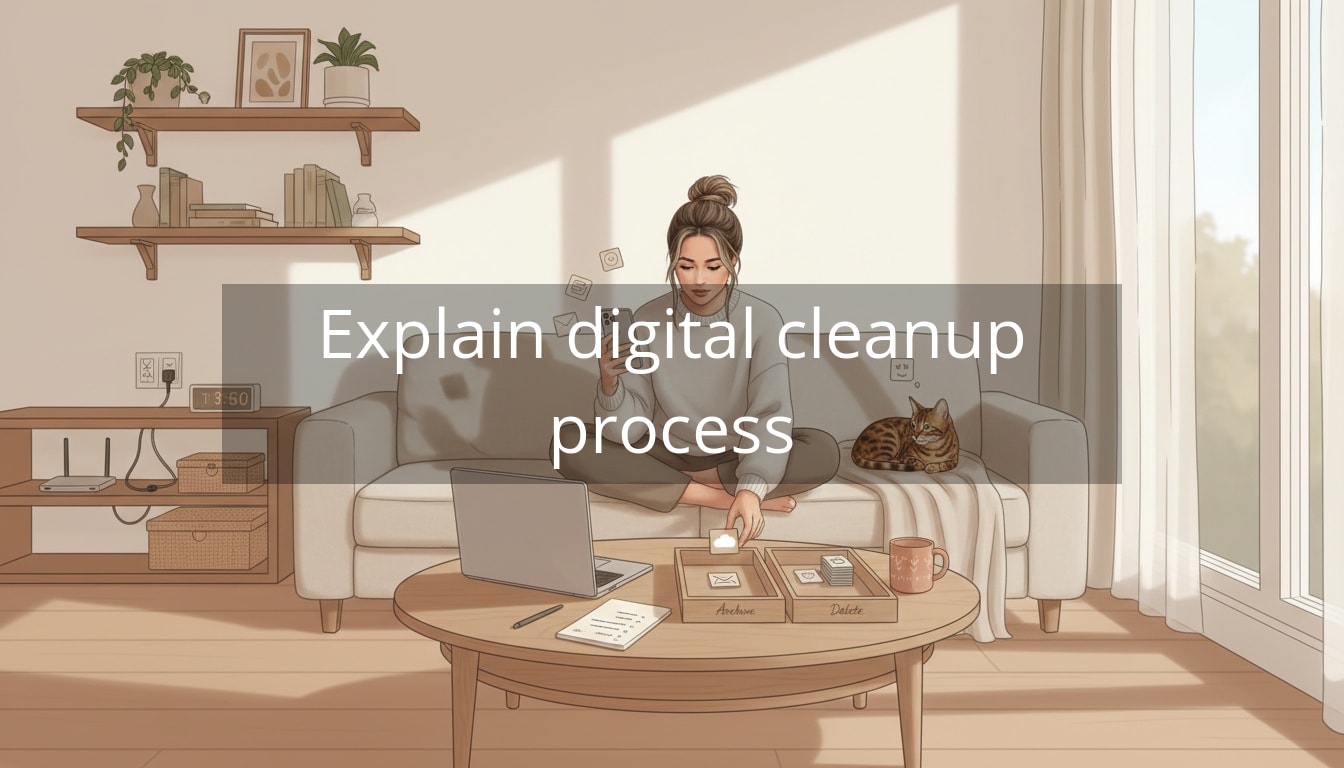
You pick up your phone to do one tiny task, and suddenly you’re trapped in a maze of notifications, unread emails, and 14 nearly-identical screenshots. A digital declutter is how you get your attention back—without turning it into a dramatic weekend-long project.
The frustrating part is that digital overwhelm isn’t a sign you’re disorganized. It’s a very normal side effect of modern life. We download apps for one appointment or one trip. We save documents “just in case.” We say yes to newsletters while half-asleep, and then wonder why our inbox feels like a second job. On top of that, our devices are designed to keep things—auto-saves, endless photo bursts, “keep everything forever” cloud storage. Clutter builds quietly until your brain starts treating your phone like a stressful room you don’t want to walk into.
Digital Declutter: the mindset shift that makes it easier
A digital declutter isn’t just deleting things—it’s deciding what deserves to stay. Think of it as moving from “I might need this someday” to “I can find what I need when I need it.” That one shift cuts down decision fatigue fast, because you’re no longer managing endless micro-choices every time you open an app drawer or your downloads folder.
“Clarity isn’t more effort—it’s fewer distractions.”
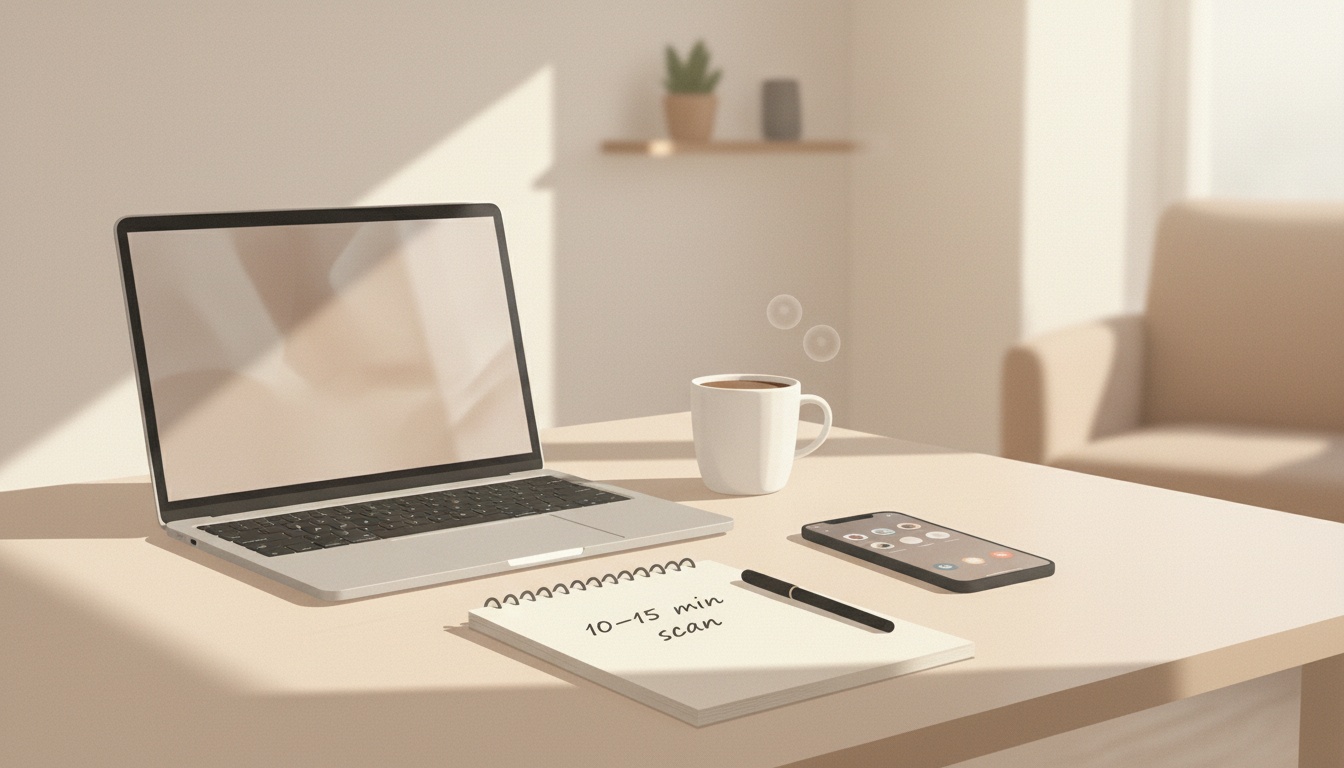
To keep it gentle (and realistic), start with a 10–15 minute “scan,” not a full purge. Open the one area that’s currently causing the most stress—usually your inbox, your photo library, or your phone home screen—and do a quick audit using a simple rule: if you haven’t used it in the last three months, you probably won’t miss it.
Here are a few small moves that create immediate breathing room:
- Inbox relief: Search “unsubscribe” and delete/leave lists you never read. If you want help, tools like Unroll.me can bundle newsletters so they stop shouting for attention all day.
- Fast phone calm: Delete one-time apps (parking, event, travel) and move daily essentials to your first screen. Everything else can live one swipe away.
- Quick storage win: Empty your Downloads folder and trash today. If you’re on Windows, Storage Sense can automate some of the cleanup in the background.
Once you’ve cleared even a small pocket of space, it gets easier to see what kind of simple system you actually need.
Build a “good enough” system after your digital declutter
When people try to organize their digital life, they often aim for a perfect structure—color-coded folders, elaborate tags, a new app for everything. That’s usually when it becomes exhausting and you stop halfway through.
Instead, think: What’s the simplest setup that will help Future Me find things in 10 seconds? That’s the bar.
The 5-folder framework (because your brain likes containers)
If you don’t already have a filing system, start with a small set of “buckets” that cover most of your life. You can use these on your computer, cloud storage, or even inside apps like Notes.
- Work (projects, presentations, references)
- Home (house docs, manuals, utilities)
- Money (tax, receipts, insurance)
- Health (appointments, labs, fitness, medical)
- Personal (travel, hobbies, life admin, important memories)
That’s it. You can always add one more later if you truly need it, but most of the time “more categories” just turns into “more decisions.”
A naming style that saves you from searching spirals
The easiest naming convention is one you’ll actually stick to. Try this:
- Date + topic + version (when relevant): 2026-04 Dentist receipt or 2026-03 Portfolio draft v2
- One home for “action” items: a folder called To File (temporary) so you don’t have to sort things in the moment
- One home for “hold onto this” items: a folder called Archive for stuff you want to keep but don’t need to see daily
Real-life example: you get a PDF from your doctor while you’re between meetings. Instead of thinking, “Where does this go?” you drop it into To File. Once a week, you move whatever’s inside to Health or delete it. No pressure, no pile-up.
Digital declutter your phone so it feels calm to open
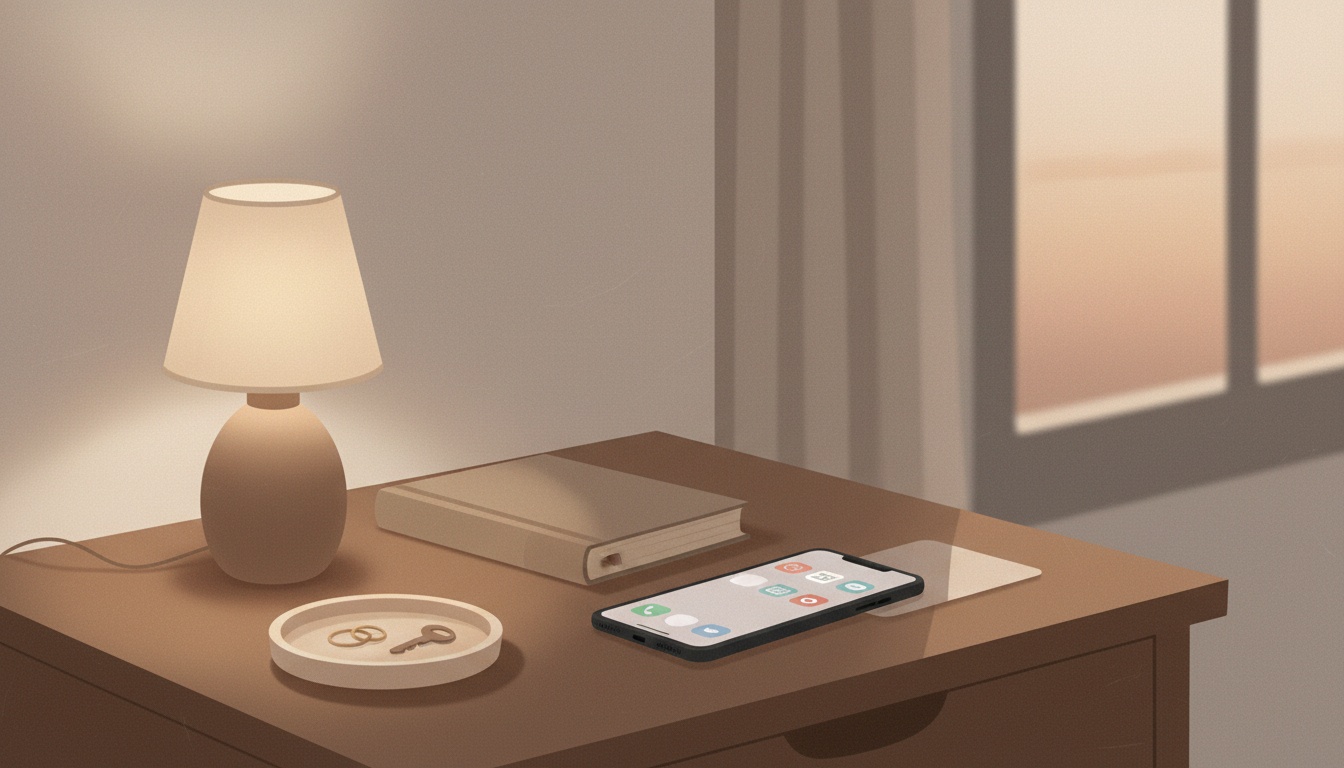
Your phone is usually the biggest source of “tiny stress.” Not because you’re doing anything wrong—because everything is competing for the same small screen.
Try the “two-screen setup”
This is simple, surprisingly effective, and doesn’t require a total redesign.
- Screen 1: Daily essentials only (the apps you’d genuinely miss today)
- Screen 2 (or one swipe away): Everything else (including social, shopping, games, occasional tools)
If you want an extra level of calm, group by intention rather than category. For example:
- “Do” (banking, calendar, maps, to-do)
- “Connect” (messages, calls)
- “Watch/Scroll” (social + streaming lives here intentionally)
This reduces the “I opened my phone for one thing and forgot why” effect—because your essentials aren’t surrounded by tempting detours.
Photos: stop treating your camera roll like a storage unit
A photo library gets overwhelming fast because it’s emotional and messy—blurry shots, duplicates, screenshots, receipts, and 48 versions of the same sunset.
A gentle approach:
- Create one album called “Receipts + Docs” and move screenshots/scans there (then delete the rest)
- Create one album called “Favorites” and add photos you truly want to keep close
- Once a week, delete screenshots you no longer need (most were meant to be temporary)
If your phone supports it, use the built-in duplicate detection and “recently deleted” features. It’s the lowest-effort win because you’re not manually hunting for clutter.
Inbox relief that doesn’t rely on hours of sorting
You don’t need 17 folders and a perfectly maintained label system to feel better. You need fewer incoming messages, and a way to separate “must act” from “nice to read.”
A simple triage method: Keep, Convert, or Clear
- Keep: reference emails you’ll genuinely need again (receipts, confirmations, important threads)
- Convert: if an email is an action, turn it into a task and archive the email
- Clear: delete or unsubscribe from anything that creates noise
Example: your dentist sends an appointment reminder. If it’s already in your calendar, archive it. If it isn’t, add it to your calendar immediately and archive it. The inbox isn’t meant to be your memory.
Use search like a tool (so you can stop hoarding)
One mindset shift that helps a lot: modern inboxes are built for search. You don’t need to keep everything visible “just in case.” If you can type a keyword later and find it in five seconds, you can let go of the constant inbox-management loop.
Small habits that keep digital clutter from coming back
The real secret isn’t a massive cleanup. It’s a tiny maintenance rhythm that prevents the slow build-up.
The 10-minute weekly reset
Pick a day that tends to be quieter—Friday afternoon, Sunday evening, whichever feels realistic—and do this quick sweep:
- Empty your Downloads folder
- Delete screenshots you no longer need
- Close browser tabs you’re “saving” but won’t return to
- Move loose files into To File (not perfect folders)
Ten minutes is short enough that you’ll actually do it—and consistent enough that things stay manageable.
One-in, one-out (for apps and subscriptions)
If you download a new app for a trial, a trip, or an event, delete one you don’t use anymore. Same with newsletters: if you subscribe to something new, unsubscribe from one that hasn’t earned your attention lately.
This keeps your digital life from quietly expanding until it feels heavy again.
Small choices, repeated, create a life that feels lighter to live.
Make your digital declutter stick with “friction” (the good kind)
A lot of digital overwhelm isn’t about storage—it’s about attention. So after you clear space, it helps to add a little intentional friction to the things that pull you away from your day.
- Turn off non-essential notifications (keep calls, messages from key people, and true time-sensitive alerts)
- Move distracting apps off the first screen so you decide to open them, rather than reflexively tapping
- Log out of shopping apps if late-night browsing is your “stress response”
- Use Focus/Do Not Disturb modes for specific blocks of time (even 30 minutes helps)
This isn’t about being strict. It’s about making your default setting calmer, so you spend less energy constantly resisting noise.
Extra resources if you want more support
If you’d like a little structure to keep going, additional resources are available:
- A printable weekly 10-minute digital reset checklist
- A sample 5-folder setup you can copy for work and personal files
- A phone home-screen layout guide (two-screen method)
- A simple inbox triage script you can follow when you feel overwhelmed
A calmer digital life is a quieter mental load
The goal of a digital declutter isn’t to become a perfectly organized person. It’s to make your devices feel supportive instead of demanding—so opening your phone doesn’t spike your stress and checking your email doesn’t feel like stepping onto a conveyor belt.
Start small, keep it simple, and trust that “better” is the win. A few gentle systems—one folder called To File, one weekly reset, one calmer home screen—can give you back more mental space than a dramatic purge ever could.
You’re not behind. You’re building a smarter, lighter way to live—one tiny decision at a time.
Telegram Galelar
Instagram @galelar_lis
YouTube @galelar
TikTok @galelar_lis