
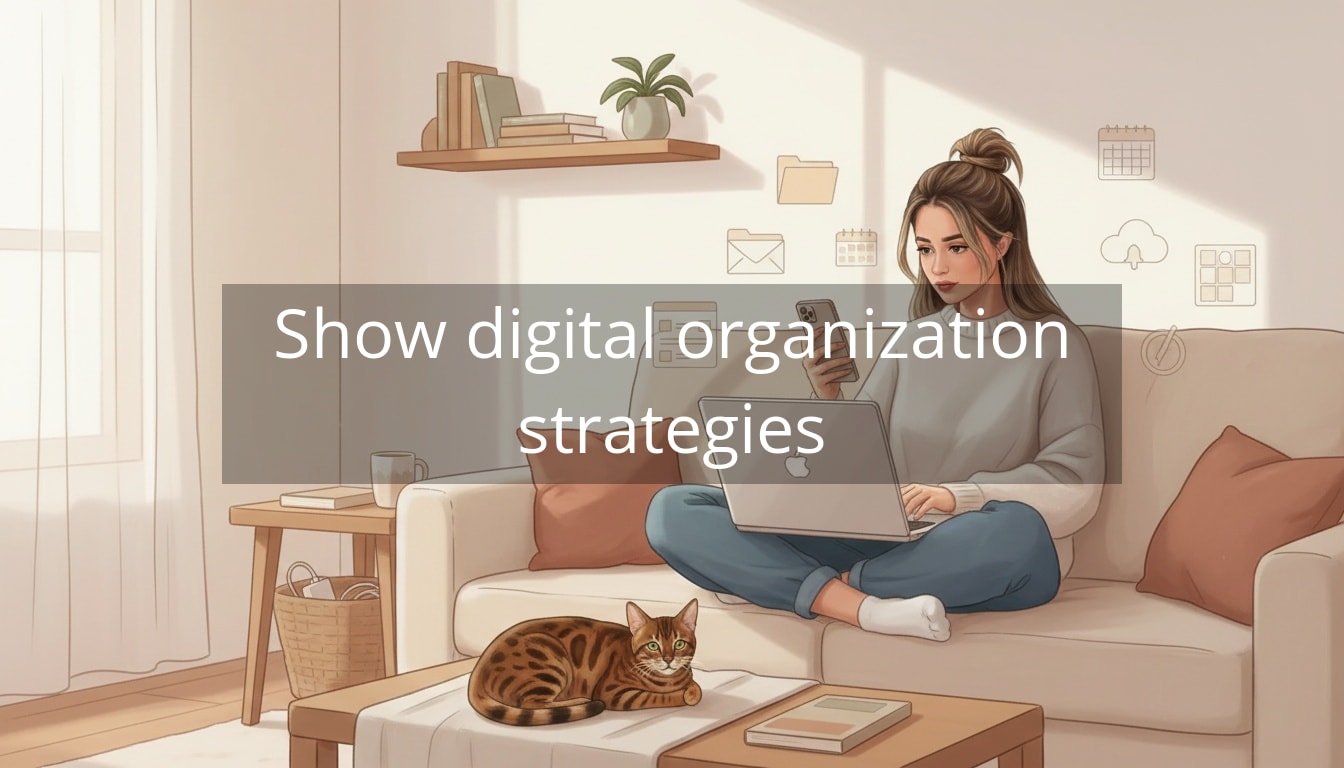
If you’ve been meaning to organize your digital life, but your laptop somehow gets messier every week, you’re not alone. One minute you’re trying to send a file to a client, and the next you’re 12 tabs deep, scrolling through “Downloads,” wondering why everything is named final_final2_REALfinal.
Digital overwhelm is sneaky because it doesn’t look like a “mess” in the way a cluttered kitchen counter does. It hides behind icons, unread badges, and files scattered across Drive, Dropbox, and your desktop. And the real cost isn’t aesthetic—it’s mental. Every time you have to hunt for a document, decide where to save something, or re-search for a screenshot you know you took, you burn focus you were saving for actual work (or rest).
Why it’s so hard to organize your digital life (and why it’s not a personal failure)
This problem happens for a few very normal reasons:
- Digital spaces have no natural limits. You can keep saving forever, so you do.
- You’re making too many tiny decisions. Keep/delete? Name it what? Which folder? Which cloud?
- Tools multiply quietly. A notes app for one project, a second for journaling, a third because someone recommended it on TikTok… and suddenly nothing is “home.”
Clarity isn’t about having less to do—it’s about having fewer things to hold in your head.
Here’s the mindset shift that makes this easier: organizing isn’t about creating a perfect system. It’s about creating a predictable one—so Future You can find what she needs in seconds without negotiating with herself.
Start with one “home base” (so you stop losing things)
Before folders, before labels, before anything else—choose one primary home for each category:
- One cloud for work files (Google Drive or OneDrive or Dropbox)
- One spot for personal files
- One capture place for loose stuff (a single “Inbox” folder works wonders)
If you use Google Workspace or Microsoft 365 already, sticking with Drive or OneDrive is usually the calmest choice—everything integrates, search works well, and you’re not juggling logins.
Once you have a home base, you can build a simple structure on top of it—without having to decide where things go every single time.
Build a folder structure you can maintain on a tired Tuesday
Once you’ve got a home base, the next step is giving it a structure that’s easy to follow even when you’re busy. The best test is simple: if you wouldn’t feel like filing something when you’re low on energy, the system is too complicated.
A sustainable folder structure is usually:
- Shallow (you can reach most things in 2–3 clicks)
- Consistent (the same logic repeats)
- Based on how you look for things (project, person, or time—not what “should” be logical)
A simple structure that works for most work + life
If you want a starting point that covers 90% of real life, try this at the top level of your home base:
- 01_Inbox
- 02_Active
- 03_Reference
- 04_Archive
Why the numbers? They keep folders in the right order everywhere (Drive, Finder, File Explorer) without you having to think about it.
How it plays out in real life:
- A client sends a contract → save it to 01_Inbox (no decisions yet).
- During your weekly reset, you move it to 02_Active > ClientName > Admin.
- A document you may need again someday (brand guidelines, HR policies, templates) → 03_Reference.
- Anything finished, old, or “I don’t want to delete this but I’m done looking at it” → 04_Archive.
How to organize your digital life with naming rules that make search effortless
You don’t need perfect naming. You need repeatable naming—so your brain isn’t inventing a new format every time you save something.
A calm, simple file naming formula
Use this when it makes sense (especially for work):
- YYYY-MM-DD (optional, great for time-sensitive docs)
- Project/Client
- What it is
- Version (only if you truly need versions)
Examples:
- 2026-05-ClientName-SOW-v1
- Podcast-GuestRelease-Signed
- Home-Renovation-Quotes
If you’re someone who ends up with “final_final_REALfinal,” here’s the gentle rule: only use versions when there’s an actual reason (collaboration, approvals, legal). Otherwise, overwrite the file or use your platform’s version history (Google Docs and Microsoft both do this well).

Set up a single “catch-all” routine (so clutter stops piling up)
The secret isn’t doing a huge clean-up once. It’s having a tiny rhythm that prevents your digital life from slowly turning into a junk drawer again.
The 15-minute Weekly Digital Reset
Pick a day that already has “reset” energy—Friday afternoon, Sunday evening, or Monday morning—and set a recurring calendar reminder. Then follow the same mini-checklist every time:
- Clear your downloads folder (delete most; file anything important)
- Empty your desktop (treat it like a temporary surface, not storage)
- Process your 01_Inbox folder (move items into Active/Reference/Archive)
- Do one quick search for duplicates (look for obvious repeats like “(1)” or “copy”)
If you only do half, it still counts. The goal is to keep your system “close to clean,” not magazine-perfect.
Tame email without trying to become a different person
Email is often the loudest source of digital stress because it mixes everything: tasks, updates, receipts, newsletters, and messages you’re avoiding. You don’t need Inbox Zero. You need an inbox that doesn’t steal your attention all day.
Use three folders (or labels) and a couple of rules
Create:
- Action (things you need to respond to or do)
- Waiting (things you’re expecting a reply on)
- Receipts/Reference (things you may need later)
Then add two basic automations:
- Newsletters → a “Read Later” label (or straight to archive if you’re ready to be brave)
- Receipts/confirmations → Receipts/Reference (anything with words like “receipt,” “order,” “invoice,” “booking”)
A realistic flow that works: when you open email, you’re only deciding “Do I need to act on this?” If yes, it stays in Action. If not, it gets filed automatically or archived. Less sorting, less mental friction.
Photos and screenshots: the quiet clutter you feel every time you scroll
Photos are emotional, so they’re easy to postpone. Screenshots are the opposite: they multiply like rabbits and somehow none of them are the one you need.
A low-drama approach
- Create one album called “To Sort” (or a folder on your computer) and move screenshots there weekly.
- Delete screenshots aggressively (most are temporary: a confirmation page, a menu, an outfit idea).
- Make one “Proof” album for items you routinely need: insurance cards, passport scans, kids/pet records, important serial numbers.
And if your camera roll is years deep: don’t start at the beginning. Start with the last 30 days. Quick wins build momentum—and your phone gets noticeably calmer fast.
Reduce tool overload (so your brain knows where things belong)
One of the fastest ways to feel digitally calmer is to stop having five places where information could be. Apps aren’t just icons—they’re open loops.
A simple “one tool per job” rule
- Notes: pick one main notes app for everyday life (others can be deleted or reserved for a specific purpose)
- To-dos: one task manager (even if it’s just a single list in your notes)
- Files: one home base per category, as you already set
If you love experimenting with apps (same), give yourself a container for that: a note called “App Experiments” where you test new tools intentionally. If it doesn’t become your primary tool within two weeks, let it go. Your future self will thank you.
Backups and passwords: the unsexy stuff that creates real calm
This is the part no one wants to do—until the day a laptop dies, a phone gets replaced, or an account gets locked. A little prevention here pays you back in peace.
A basic backup plan you’ll actually follow
- Cloud sync for everyday files (your “home base” covers much of this)
- One external backup for your most important folders and photos (monthly is fine)
- A quick check once a quarter: can you actually restore a file if needed?
Use a password manager (and stop relying on memory)
If you’ve been keeping passwords in your notes app or reusing variations, you’re not alone—but you deserve better support than that. A reputable password manager reduces mental load and makes it easier to use strong, unique passwords without thinking about it every day.
You don’t need more discipline—you need fewer decisions.
A gentle finish: keep it predictable, not perfect
If you want your system to stick, aim for the smallest set of habits that keeps things from sliding back into chaos:
- Default landing spot: everything loose goes into one Inbox folder
- Weekly reset: 15 minutes to clear downloads, desktop, and Inbox
- Monthly mini-audit: delete unused apps, unsubscribe from newsletters you never read
That’s enough to organize your digital life in a way that actually holds up to real schedules, real stress, and real human energy levels.
More help (if you want it)
If you’d like extra support, additional resources are available to make this easier and more personalized:
-
A printable weekly digital reset checklist
-
Sample folder structures for freelancers, corporate roles, and multi-project creatives
-
An email rules guide (Gmail + Outlook) for newsletters, receipts, and client messages
-
A “camera roll cleanup” routine that takes 10 minutes at a time
Conclusion
A calmer digital space isn’t about being “on top of everything.” It’s about creating a few smart defaults so your brain isn’t doing background work all day: searching, re-deciding, re-opening loops.
When your files have a home, your inbox has a flow, and your loose ends have a routine, you get something genuinely valuable back—mental quiet. More focus for the work you care about, and more capacity for the life you’re trying to live.
You’re completely capable of building this. Start small, keep it predictable, and let your systems carry more of the load—so you don’t have to.
Telegram Galelar
Instagram @galelar_lis
YouTube @galelar
TikTok @galelar_lis